Your phone. Your dash. The weather, built in.
Navar Maps is a web app. No hunt through an app store. Open it, mount it, and drive.
See how Navar Maps rides on the dash, with voice over Bluetooth and the weather on the map.
Video credits
Video: Filmster / Neural Talk, with voice-over. Draft cut, not final. Map data © OpenStreetMap contributors · tiles OpenMapTiles / OpenFreeMap.
- 1
Add it to your home screen
Open Navar Maps in your phone's browser and add it to your home screen. It's one tap away, ready for the next trip.
- 2
Mount it on the dash
Slide the phone into a dash mount, at a glanceable height. Navar Maps is built for a car screen: a driving HUD, a night mode, and controls meant to be used in motion. Keep the phone mounted and your attention on the road.
- 3
Connect audio over Bluetooth
Pair your phone with the car and let natural voice guidance play over the speakers. Turns stay in your ears. The map stays on the mount.
- 4
Set a destination and go
Search, pick a place, or use a Favorite. Watch live radar, alerts, and hazards on the same map as your route. If a better path around a hazard is available, Navar Maps will offer it.
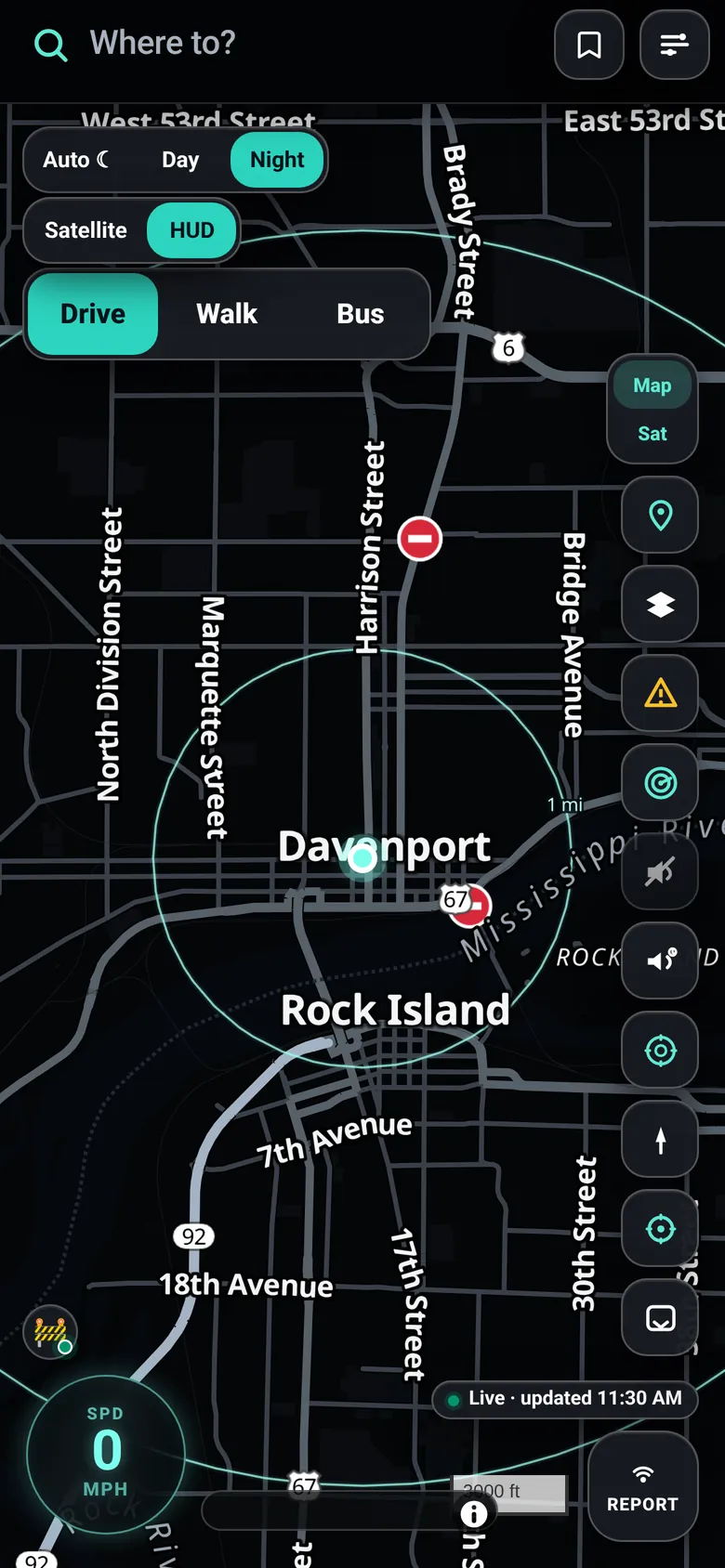
Image credits
Screenshot of the Navar Maps live preview, 29 Nov 2026, real data at capture time
Radar: National Weather Service
Map data © OpenStreetMap contributors · tiles OpenMapTiles / OpenFreeMap
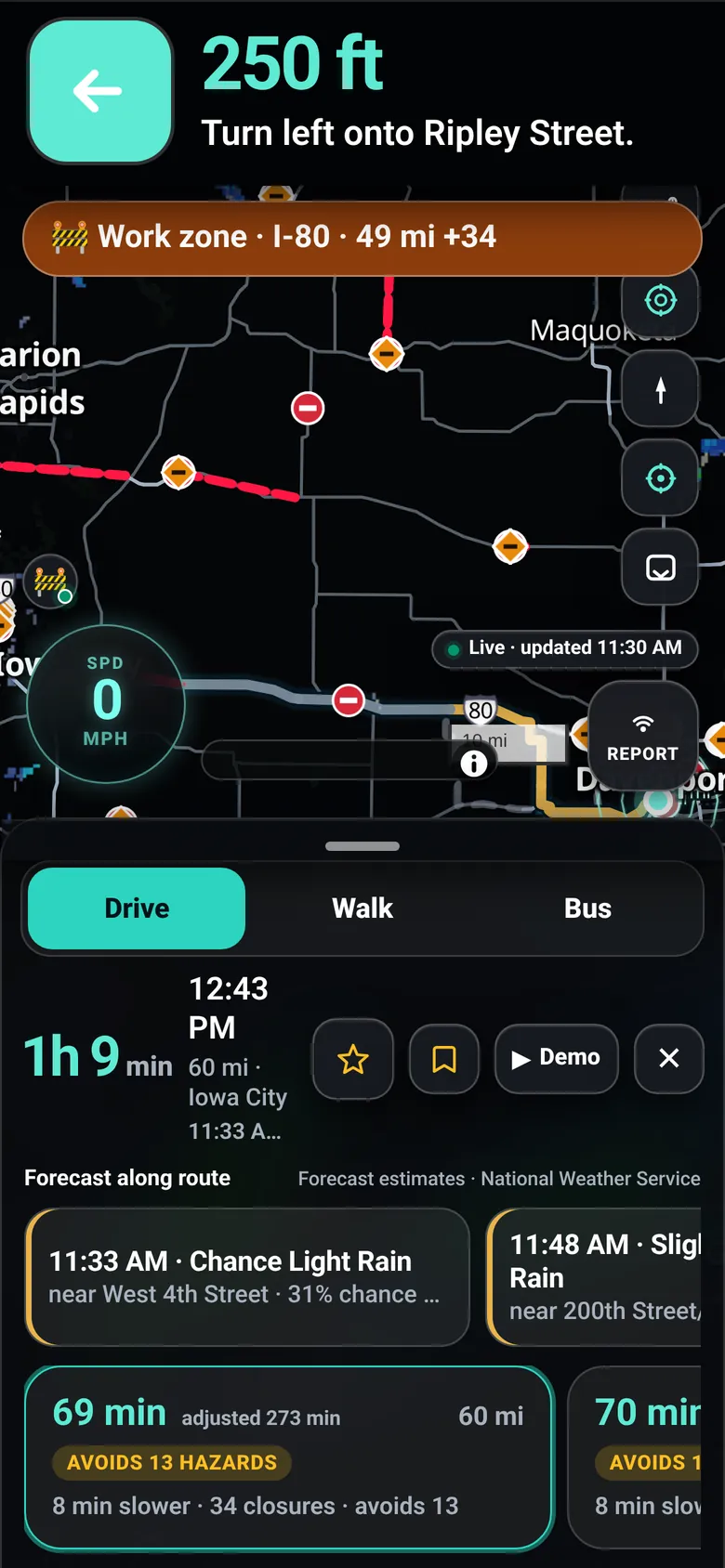
Image credits
Screenshot of the Navar Maps live preview, 29 Nov 2026, real data at capture time
Radar: National Weather Service
Map data © OpenStreetMap contributors · tiles OpenMapTiles / OpenFreeMap
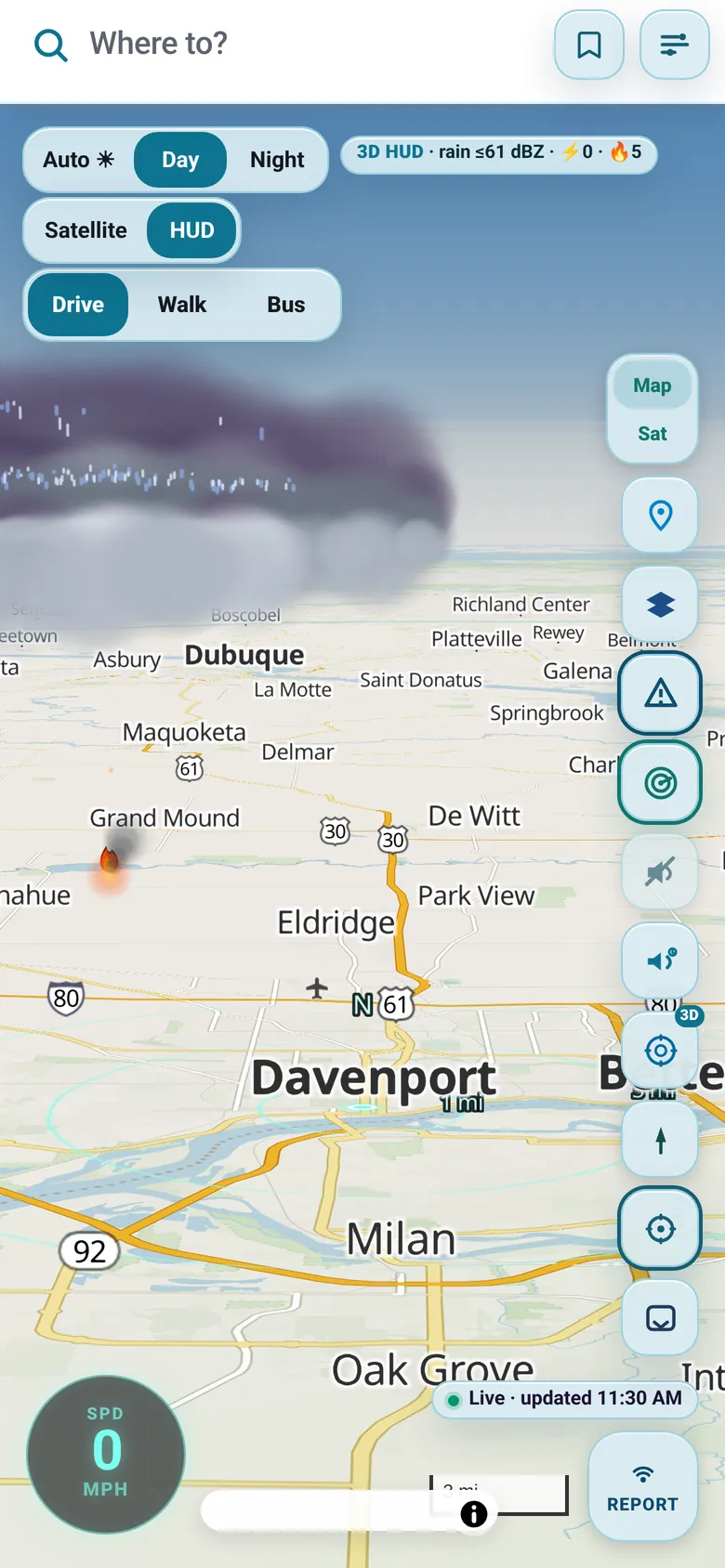
Image credits
Screenshot of the Navar Maps live preview, 29 Nov 2026, real data at capture time
Radar: National Weather Service
Hotspots: NASA FIRMS
Map data © OpenStreetMap contributors · tiles OpenMapTiles / OpenFreeMap
Honest limits
- Location needs a secure (HTTPS) connection and your permission.
- Adding to the home screen creates a shortcut. It's one tap away. The app still needs a data connection for maps, radar, and alerts, and does not work offline.
- Keep the phone mounted. Don't handle it while driving.
- Navar Maps is not a life-safety system. Follow official weather warnings and local authorities.
Get early access
Be first to drive with the weather built in.
Navar Maps is not a life-safety system. Follow official weather warnings and local authorities.